



My Blog for your Knowledge

We'll make sure your website works for you...

The Road to Web designing

Art Illustrations

Do you want to look great?

Showing posts with label Chit-Chat. Show all posts

31 July 2012

Relevant Tips for Good Web Usability

website will be able to cater well to its users and readers if both the web designers and writers will work as one to come up with a website with readable web contents of good usability. Any website that merely looks beautiful and attractive but lacks usability is useless. This is the more important thing to consider because without good web usability, one will not be able to reach out to their readers effectively. Whatever is the website’s target audience, same principle applies. Web usability is of great importance.
In order to do that, there are some things that one has to bear in mind. This is the part where the designers and the writers work hand in hand. Read on the tips below so you could understand the role of the writers for good website usability. But before the writers become part of it, it is the web designers that make it friendly for the users. So, take a look at our tips below for good web usability.

1. Have good navigation.

Have good navigation
Site: Art 4 Web
It is always important that your website has good navigation. You can do this by placing your navigation buttons on areas that can be easily noticed. Organize your categories andarchives well. Guiding the users well can give them a good user experience and this will even make them stay on the website for long because they can easily find what they are looking for.

2. Use taglines.

Use taglines
Site: Able Bots
Tagline is a statement that represents the website’s mission and philosophies. Using a tagline can let the users know what the website is all about in just one look. Using a tagline can immediately capture the attention of the users and they will even be invited to browse the website. Without a tagline, your users will seemingly be blinded on what the site is.

3. Have a site search.

Allow your users to explore your site by placing a site search. This will surely increase their usability. Users always want to find some information and it would be a lot easier for them to get them by merely typing keywords in your search bar. This will allow them to get into the information they need. They wil surley be pleased to find it at once and would browse the site even more.

4. Use headings to break sections.

Another good way for good website usability is by using headers for every section. This can tell the readers where they are and what they would be reading. Doing this seemingly divides the entire website into simpler chunks that would be a lot easier to understand and digest. It would also be friendly for the eyes of the users. When you place headings, use simple and concise ones.

5. Avoid much flash.

Some sites use flash for other areas of their sites but it would not be good if you use too much flash because it can slow down your site. It will surely leave a negative impression for the user because he was not able to view what he wants to see at once. Some readers are not patient to see some items. They will just leave the site and look for other sites that can easily give them what they need.

6. Use a site map.

Site maps improve search engine optimization and page navigation. A site map can help the users see what the entire site had been posting. He could also see and understand how the whole site’s architecture. Having a site map can greatly improve user’s usability. They can even spot some interesting things there which they might want to view.

7. Use interesting visuals.

Use interesting visuals
Site: Mealeo
Websites usually make use of photos, videos, charts, graphs and other visual stuff to show something. Make use of it effectively by choosing the right ones that can truly convey your message. Aside of sending info, it can also add appeal to your site and can also enhance readability. Make sure your images have something to do with the context of your posts so that they will go together effectively.

8. Place concise contents.

Place concise contents
Site: Amazee Labs
Do not make posts that are too long. This can only bore your readers and they might not even read it especially if they see long paragraphs. Be straight to the point and avoid using some unnecessary information. Also, make use of words that are easy to understand so that anyone reading it can grasps the meaning of what you are writing. Avoid using long paragraphs and sentences for they look heavy to the eyes and are not comprehensive for reading.

9. Make easy to read web pages.

Since most people actually scan pages and look into interesting headlines, titles, texts in bold and lists, you have to make sure that your pages are easy to read. If not, you will lose your readers. Although, there are really people who read the entire content of a site, some people just don’t do that. They will only try to take what you want to relay through your headings and images.

10. Consider negative space.

Your readers will find it much easier to read your text and look into your site if you make use of negative space. That includes the spaces between your letters and the spaces from your text to your images. The space can drastically affect the legibility of the contents. See to it that you give each design element enough space to breath. Doing so can also make it lighter for the reader’s eyes.

It’s Your Turn Now

Every website sees to it that it is able to have good usability to make sure that the users and readers could easily chew on what they want to convey. Having good website usability is also an effective way to attract visitors to view your website. One will surely have a good user experience once your site offers good usability. Would you like to add some tipsabove? Feel free to do that.

25 December 2008

Use your extra Gmail space as a hard drive

If you’re having extra space on your Gmail account and you don’t have extra space on your hard disk, you can use that free Gmail space as a hard drive. Using a cool freeware program called Gdrive will create an extra drive inside My Computer, and every time you use this drive i.e. use files from it, is actually downloading and uploading to your Gmail account.

1. First download Gmail Drive

2. Extract the files from the downloaded file and click Setup.

3. After the installation go to My Computer and an extra drive called Gmail Drive will appear

4. Double click it and a window with the user name and password will appear

Enjoy your extra drive space :-)

17 December 2008

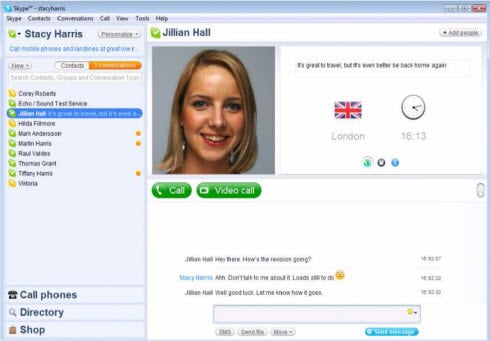
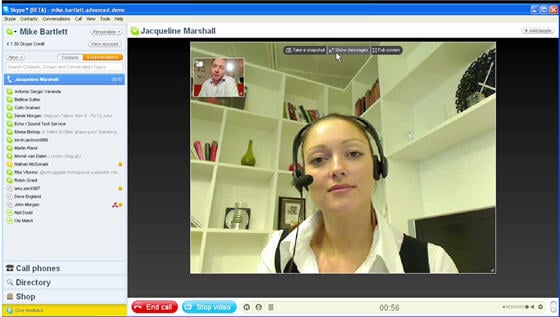
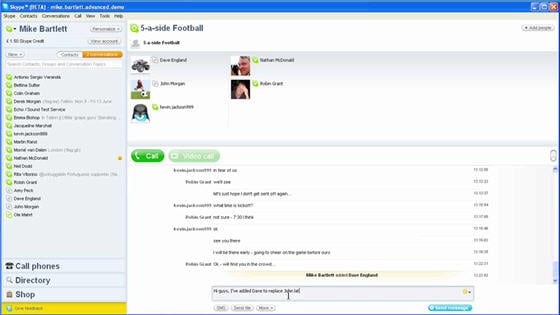
Skype 4.0 beta New Look, New Features...

Skype announced Skype 4.0 beta yesterday. I was supposed to be on the briefing conference call, but was tied up with finishing up the Movable Type 4.2 migration. But I wanted to bring information about this major 'point' release to your attention. Better late than never I guess.


First, below are three videos provided by Skype. It includes an intro by Skype President Josh Silverman who espouses "integrated communications". Integrated communications, unified communications, what's the difference?

Anyway, the first video talks about making Skype easier to use, a redesigned user interface, improved video features, other new changes & features and perhaps most importantly, the fact that it is "beta". In fact, they are only releasing the Skype client "releasing it to a limited set of users as a way to begin the conversation with our community." So be forewarned a) that it's a limited beta and b) that it is missing some features in Skype 3.8 such as full history and contact groups. Skype Journal has a similar warning.


Conversation management is better in Skype 4.0. It displays a list of all the conversations you've got going on and lets you easily move in and out of conversations. A conversations button above the contact lists all the conversations users have active and users can simply click between them to pick up a conversation where they left off. According to Mike Bartlett, Director of Windows Product Management at Skype, "You can also pop your conversations out into separate windows if you prefer having different windows for different conversations."


Check out the videos. Oh and if you want to live dangerously, you can download Skype 4.0 beta here. (Windows only - Mac & Linux users need not apply)


What's New on Google Talk?


Group Chat

You can now invite multiple people to chat with you in a group using the Google Talk Gadget. When you're chatting with a friend, just click on the "Group Chat" button to invite one or more friends to join the conversation.


New Emoticons :-)

We've added a nifty e
moticon picker to the Google Talk Gadget, which lets you show off your :-) and your :P in three different, animated styles. Just click on the smiley in the lower right corner of your chat tab to check them out and pick your favorite look.


Popout support and Flickr slideshows

You can now do more with the Google Talk Gadget. In addition to putting the gadget on your Google Pe
rsonalized Homepage, you can now pop out the gadget into a separate, small window anytime. This way you can navigate to other websites and still keep your contact list and chats open. And just like running the gadget on your homepage, this way of using Google Talk is completely web-based, and requires no download.


They've also added some new media capability to the Google Talk Gadget. In addition to viewing YouTube videos and Picasa Web Albums, you can now also watch Flickr slideshows in your chats.

Windows Vista Support
You can now use Google Talk with Microsoft's new Windows Vista operating system.

orkut integration
Google Talk makes it easier than ever to chat with more of your friends. If you use orkut, Google's free social networking service, you can chat or place Internet phone calls with your orkut f
riends using Google Talk. orkut friends will automatically appear in your Friends list, and you'll find out instantly if you've received a new orkut scrap. Learn more


Offline Messages
Now if your friends have chat history enabled, you can send them messages even when they're not online. Just enter a message into the chat window as you would normally, and they'll get it the next time they sign into Google Talk. In Gmail, offline messages can be searched and organized -- just like instant messages in their chat history. Learn more


File Transfer
With this top requested new feature, you can send unlimited files and folders to your friends through Google Talk. There is
no restriction on the file type or size and the peer-to-peer transfer is fast and reliable. Learn more


Voicemail
If your friends aren't around to answer your call, you can leave them a voicemail message instead. Just record your voice after the "Meep" and your friends will get an email to their Talk contact address with the voicemail attached as an audio file. They can play your message when they check their email and save it for as long as they want. Learn more


Music Status and Music Trends
Listening to music while chatting on Google Talk? Now you can let your friends see what you're listening to by selecting "Show current music track" in your status menu. Your status message will change when your song does!

You can also choose to contribute your music tastes to Google Music Trends, and check out what Google Talk users are listening to across the world. Learn more

Google Talk for BlackBerry devices
Get Google Talk on your BlackBerry and chat with your friends on the go for free. You can even keep emailing and playing BrickBreaker while you chat. Download it at www.blackberry.com/googletalk (most commonly accessed via your BlackBerry).


15 December 2008

A special holiday treat from the orkut team

If there's one thing that the orkut team loves, it's the holidays. The twinkling lights, the cheerful music, the snow...(okay, maybe not snow for most of us), all make this one of the most magical times of year.

To help you share in the holiday spirit with us and all of your orkut friends, we've decided to try something new and (hopefully!) exciting this year: a special holiday page on orkut.

With this page you can create holiday parties using the events tool, send season's greetings to friends and relatives using photos and videos, and play with three fun, holiday themed apps.

Already excited? Check out this screenshot of the page now:

Working with the talented developers at BuddyPoke, StudioSol and Gartic.com, we've compiled a selection of three apps featuring special holiday promotions. Here's a quick list of the apps and a few details about all of the cool ways you can join in the holiday cheer:

  • BuddyPoke
    • Dance with Santa, kiss under the mistletoe, give presents to friends and much more
  • My Music
    • Check out a Christmas music playlist with your friends
  • Christmas Tree
    • Create and decorate your very own Christmas tree and send presents to friends
The holidays are all about sharing things with the people you care about, so be sure to tell your friends about the special holiday page on orkut. Just remember, this page will only be around for a few weeks, so be sure to visit it now. Hope your holidays are healthy, happy and safe!

The Earth's Vital List: What are the 12 things you can't live without?

The orkut team has come across another cool app that we think many of you may enjoy using and sharing with your friends: 'The Earth's Vital List.' This app is part of a global digital campaign for Fox's remake of the 1951 film The Day The Earth Stood Still. The campaign mimics the film's premise— Earth and human life are threatened by extinction from an alien race of super-robot enforcers.

'The Earth's Vital List' app begs the question: If the Earth was under attack and you and your possessions could be protected in an alien sphere, what would you save?


With the app, you can build 'vital lists'– lists of 12 prized possessions that you would want to save from extinction on "The Day the Earth Stands Still". In building your list, you can upload personal photos of all of your must-have items. You can then share your 'vital list' with your friends, allowing them to comment and vote on the things you chose.

A global 'vital list' micro-site tabulates the votes across all social networks and languages and allows people to view how their items rank in comparison to the rest of the world. A countdown to the film's debut (12/12/08) will coincide with a special reveal on orkut displaying the final world's vital list of the top 1,212 prized possessions.

So check out the app and find out what things your friends and people all around the world just can't live without.

Fully integrated chat in orkut– that's what I'm talkin' 'bout!

As so many of our friends are constantly on orkut, sending scraps, commenting on photos, and bumping hips on BuddyPoke, we figured it was time to make it easy for you to chat directly with your orkut friends whenever they come online. That's why we are excited to announce a fully integrated version of Google Talk that works seamlessly from within orkut, with no install or separate window required.


I'm sure many of you (especially you social butterflies with hundreds of orkut friends), are concerned about being bombarded with chat requests every time we go online. Not to worry! To get you started, They've come up with a formula that automatically predicts which of our orkut friends we probably want to chat with, and only tells those people that we're signed into Google Talk. There formula takes a bunch of things into consideration, giving preference to people who we've labeled as 'best friends' or written scraps to recently, and people who have friends in common with you.

They realize that no one knows who you'd like to talk to better than us do, so they've also made it easy for us to add and remove people from our list of orkut chat friends. To make changes to the list, just go to the revamped Google Talk settings page. Don't worry, only we can see our list of chat friends, so there's no need to worry about any hurt feelings when you make changes. :-)


If you already use Google Talk, either on its own or as part of Gmail, then your friends signed into Google Talk in other applications will also be able to chat with you when you come online.


To sum up, the new Google Talk in orkut lets you:

  • chat with your orkut friends in real time from directly within orkut
  • control which of your orkut friends can chat with you
  • chat with your Google Talk and Gmail chat contacts
  • visit different orkut pages while keeping your chatboxes open

Hope we have as much fun with this new feature as they've had creating it. they'll be rolling it out to all of our users over the next few weeks, so keep your eyes peeled for a note from us.

orkut's never more than a click away

If you're anything like me, you probably spend a lot of time on orkut. It seems like no matter what I set out to do online, I always end up remembering a friend that I desperately need to scrap, finding a new set of photos that I absolutely need to check out, or getting an invite to an event on orkut that I simply can't miss. Whatever the reason, I'm usually busted by my coworkers with orkut open in at least two different windows at any given time. Thankfully, using orkut is a pretty important part of my job, so they usually let it slide. ;-)

With orkuteers like myself in mind, the Google Toolbar team has created a new version of Toolbar for Internet Explorer that makes it even easier to access orkut. With this new version, you can quickly and easily search orkut no matter what website you happen to be visiting.

To get started searching orkut from anywhere on the web, just go to the "Search" pull-down menu on the upper left-hand side of your screen and select "orkut". Now anytime you want to search for a term on orkut, you can just type it into the search box on your toolbar and voilĂ !, you'll go straight to the orkut search results page.


Google Toolbar also lets you add a custom orkut button to your toolbar that gives you one-click access to the orkut sign-in page.

To add an orkut button to your toolbar, just go to the Button Gallery and select 'orkut'.


For those times when I manage to use the Internet for things other than hanging out on orkut (it's a constant battle for me), I've found that Google Toolbar for Internet Explorer and for Firefox has a number of other cool new features worth checking out. Here are a few of my favorite features:

- Add gadgets to your Toolbar for easy access to content from your favorite websites
- Synchronize your settings online so you can use your Toolbar from any computer
- Create multiple profiles in AutoFill to keep your business and personal information separate

To learn about all of the different features that the new version of Toolbar offers, check out the Toolbar website: toolbar.google.com/features.

Have a Google Toolbar story that you want to share? Send the team a quick note, I'm sure they'd love to hear from you.

Hope this makes accessing orkut even easier and more fun!

A very eventful post

We on the orkut team love talking to our friends online, but there are also plenty of times when we'd really like to hang out with them in person. To make it easier for you to get together with old friends and meet new ones, we've added an events tool to orkut.

To create an event, just click the "events" button on the left side of your home page or profile. After you choose a creative title for your party/meeting/hot-dog eating contest and pick a good time for it to start, you can invite any of your orkut friends. To help ensure that all of your friends know how to find you, the orkut events tool will automatically create a Google Map of whatever location you choose. All you have to do is click "add more details" and type your event's location into the box labeled "address." If you'd like to make your plans a bit more exclusive, there are three privacy settings that you can choose from to restrict who can participate in and even view the event.

Check out the invitation I made for the going-away party


With the new orkut events tool you can easily:

  • personalize your event with a creative title, description, and picture
  • map your event's location just by typing in the address
  • control whether your event will be a public gathering or a private party
  • invite all of your orkut friends
  • add photos from your event to remember it long after it's over
  • manage your busy social schedule from anywhere there's an internet connection

So get out there and start turning your party plans into reality. Just don't forget to post pictures from your events for your guests to see and comment on!

Apply to be a Chitika Publisher!
Follow on Buzz