



Windows, being one of the most used OS, brings great challenges for Microsoft to keep its users impressed in the next version of Windows.
Although Windows 7 has done exceptionally well since its release, Microsoft has been constantly working to make the next version of Windows a better one by further improving upon the existing features, and have added new impressive Windows 8 features along with a stunning UI.
Microsoft released the early version of Windows 8 on a prototype tablet last week. Those of you who would like to taste and experience the all new Windows 8, you can download the Developer Preview, which is currently in pre-beta version. The developer version shows off the current stage of the OS. It is available for free download, and comes in three different packages:
(1) 64-bit version – Only the OS
(2) 32-bit version – Only the OS
(3) 64-bit version with developer tools
Windows 8 features
Windows 8 offers a number of new Windows 8 features from its all new UI to Windows App Store and improvised security features. Here’s a list of new features and improvements which will arrive with Windows 8:
Support for both x86 PCs and ARM tablets
Windows 8 is the first edition of Windows which will work on both ARM based tablets and traditional x86 (as well as x32 and x64) PCs based on ARM processors from Intel and AMD.
“Support for ARM-based chipsets, touch, and sensors makes Windows 8 work beautifully on your choice of a full spectrum of devices, such as 10-inch slates with all-day battery life, ultra-lightweight laptops, and powerful all-in-ones with 27-inch high-definition screens,” Microsoft contends, in a Windows 8 Guide distributed with Windows Developer Preview
Windows To Go
The “Windows To Go” seems to be an exciting feature that basically allows Windows 8 to boot from a USB device (called as Live USB), including user’s programs, settings and files. The feature is designed to work with both USB 2.0 and USB 3.0, and on both legacy NIOS and UDFI firmware. However, Microsoft says that a user will not be able to “Hibernate” with this feature.
“Windows To Go is a new feature in Windows 8 that enables enterprise administrators to create USB drives containing complete, managed Windows images that users can use to boot and run Windows on any Windows 7 or Windows 8 capable computer. Windows To Go makes it possible for employees to use a managed device whether they work from home, a client office or in a free seating environment. This session will discuss Windows To Go, its hardware requirements and building compatible and complementary software.”
Another interesting thing about this feature is that, if the USB drive is removed, Windows will automatically freeze, but will continue to operate if the USB drive is inserted back in the next 60 seconds after removal.
Windows Store
To compete with Apple, Windows has confirmed the introduction of a Windows Store, similar to Mac App Store, which allows users to browse through Windows applications, while developers can publish their Metro-style apps on Windows 8 devices.
Few days back, Microsoft gave a strategic view of its app store, and gave a quick demo on how it works. Microsoft revealed that the Windows App Store will be the only place where users can access the Metro-styled apps. Here’s a quick demo that shows how users will be able to buy their apps:
Windows 8 User Interface
Speaking about the UI, Windows 8 certainly has got a mind blowing interactive UI, which has been extensively redesigned to a “Metro-style” design, which shows the most important information to you, embodies simplicity, and gives you full control over it. The UI is designed to provide a fluid and intuitive interaction and navigation with touch, or a mouse and keyboard.
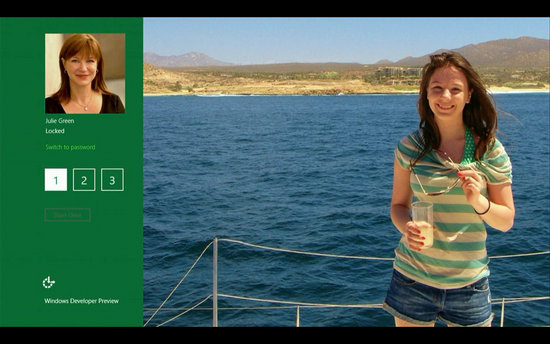
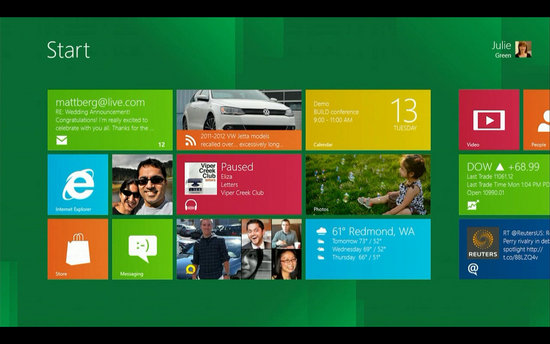
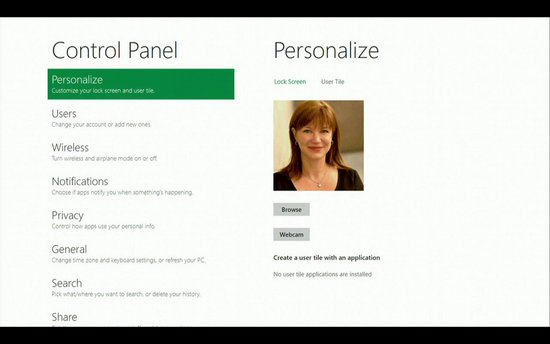
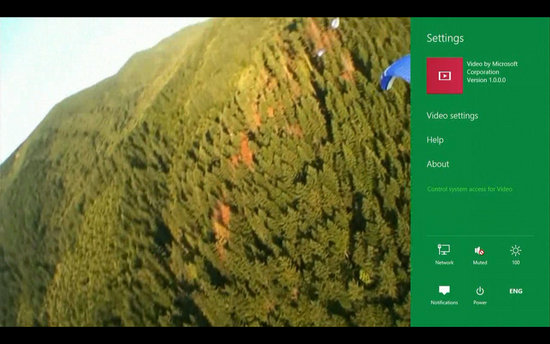
Julie Larson-Green, Corporate Vice President, Windows who stated: “Everything that’s great about Windows 7, is better in Windows 8,” gave a quick hands on look at the Windows 8 user-interface. Here are some of the screenshots she released:
Windows Logon Screen – Unlike the traditional way of entering a password to unlock the screen, Windows 8 can be unlocked by just tapping on the right areas of the screen.
Windows 8 Start Screen – The Start screen is yet another impressive UI. The screen basically groups all your applications together, which you can easily drag and drop, or add new things.
Control Panel
Playing Videos in Windows 8
Windows 8 Task Manager
Improved Windows Defender
The Windows Defender which was first released with Windows Vista is getting a security upgrade with the upcoming Windows 8. This would probably edge-our third-party antivirus and anti-malware programs. Windows Defender will become a full-fledged anti-malware solution for Windows 8. This will include protection against all types of malware such as virus, worms, trojans and rootkits.
Internet Explore 10
In addition to that, Windows Defender will provide real-time detection and protection from malware threats using a file system filter, and will interface with Windows secured boot, which is another security feature.
The developer preview of Windows 8 comes with a Metro version of Internet Explore (IE) 10. Since it is a preview version, it does not support any browser plugins and extension – including Adobe Flash and Microsoft Silverlight. However, it will feature full screen browsing mode by default, implements several new HTML5 capabilities, turbocharges HTML5 performance, and adds some security options for Web applications.
Windows 8 Minimum System Requirements
It is reported that Windows 8 is expected to have the same system requirements as Windows 7, and will run on existing PCs/laptops that run Windows 7. Here are the following minimum system requirements to run Windows 8:
Processor: 1GHz or faster 32-bit or 64-bit processor
RAM: 1GB (32-bit) or 2GB (64-bit)
HD Space: 16GB for 32-bit (or 20GB for 64-bit)
We can expect Windows 8 to be launched sometime in mid-late 2012, however, it’s too early to predict the Windows 8 release date, since it is still under development. Nevertheless, the only question that haunts each and every one of us – Will Windows 8 win the battle against Apple which it had lost several years back?
The world’s most popular Windows Zip utility for file compression, file sharing, file encryption, and data backup. Now it?s even quicker and easier to zip/unzip files for fast, efficient, and secure uploading/downloading, emailing, and storage WinZip 15 delivers fundamental architectural improvements, a simplified design, and significant new file sharing functionality.
This beta test version of Norton AntiVirus 2010 is the fastest, most proactive protection against viruses, Trojans and worms we have ever offered. The 2010 version of Norton AntiVirus offers superior performance, improved protection, and tools to help preserve the performance of your PC.
OVERVIEW:
This year the Norton Protection System has been enhanced and our new SONAR 2 technology to stop new and unknown threats. To protect your PC’s performance, we have added the Norton Performance System.
Testing Windows 7? Norton AntiVirus 2010 will protect your Windows 7 system from all types of malicious software.
Test drive tomorrow’s Norton AntiVirus, today.
System Requirement:
This year the Norton Protection System has been enhanced and our new SONAR 2 technology to stop new and unknown threats. To protect your PC’s performance, we have added the Norton Performance System.
Testing Windows 7? Norton AntiVirus 2010 will protect your Windows 7 system from all types of malicious software.
Test drive tomorrow’s Norton AntiVirus, today.
Microsoft® Windows® XP with Service Pack 2 or later Home/Professional/Media Center
300 MHz or faster processor
256 MB of RAM (512 MB RAM required for the Recovery Tool)
200 MB of available hard disk space
Microsoft Windows Vista® Home Basic/Home Premium/Business/Ultimate
Supports 32-bit and 64-bit platforms
Must meet the minimum Windows Vista operating system requirements
Microsoft Windows 7® Starter/Basic/Premium/Professional/Ultimate
Supports 32-bit and 64-bit platforms
Must meet the minimum Windows 7 operating system requirements
Email scanning supported for POP3- and SMTP-compatible email clients.
Browser support for Vulnerability Protection feature:
Microsoft Internet Explorer® 32-bit 6.0 or higher
Mozilla Firefox® 3.0 and later
Please read the following before you begin your download.
Before using this pre-release software, it should be emphasized that it may not display the stability of a final product. You may encounter problems with this pre-release software that may possibly result in data loss. This software is not recommended for production use and it is highly recommended that you backup your existing data before you install this software. SYMANTEC WILL NOT BE RESPONSIBLE FOR ANY DATA LOSS OR DAMAGE TO YOUR COMPUTER AS A RESULT OF TESTING THIS PRODUCT.
Please note that installing this Beta may uninstall some Symantec and/or other third-party programs already installed on your machine. Please ensure that you have your prior product media (i.e. compact disks) so that you can re-install your products after the Beta version expires. This beta release will expire in 30 days. At that time, you will need to uninstall the Beta software and re-install your prior Norton product. Or, you can purchase the full version and install it.
Thank you for your help in evaluating the product. Your 2010 Norton Product Team
DOWNLOAD:
Please read the following before you begin your download.
Click "Save" when prompted. By default, the file "NAVBetaDownloader.exe" will be saved on your desktop. After your download is complete, click on the file to begin installation.
Steps to install the public beta version of Norton AntiVirus 2010:
Your installation of the beta test version of Norton AntiVirus 2010 should have started automatically. If it did not, save ‘NAVBetaDownloader.exe’ to your desktop, double-click it to download the product test build and start the installation.
Follow the onscreen instructions to complete installation.
IETester is a free WebBrowser that allows you to have the rendering and javascript engines of IE8 beta 2, IE7 IE 6 and IE5.5 on Vista and XP, as well as the installed IE in the same process. New in v0.2.3 : IE8 beta 2 and Print feature !
This is an alpha release, so feel free to post comments/bugs on the IETester forum or contact me directly. Minimum requirement : Windows Vista or Windows XP with IE7 (Windows XP with IE6 has some minor problems and IE7/IE8 instances do not work under this config)
Google Earth Pro GOLD (Original) Google Earth is a virtual globe program that lets you surf through our entire planet. You can zoom and search for your town and much more things such as school, churches etc! Google Earth Pro (Gold) is the upgraded version, it has alot of more features such as movie making or advanced printing and much more… Worth 400 $
Google Earth Pro combines the power of Google Search with satellite imagery, maps, terrain and 3D buildings to put the world’s geographic information at your fingertips. Fly to your house. Just type in an address, press Search, and you’ll zoom right in. Search for schools, parks, restaurants, and hotels. Get driving directions. Tilt and rotate the view to see 3D terrain and buildings, or look up to explore the sky.
Make Stunning Album and Share with Friends in Clicks!
Do you want to record the growing process of your children? Or do you want to have the magic to transform one face to another? Now with our magician--Sothink Photo Album Maker, It can be realized in minutes! And you can share it with your friends if you like!
Sothink Album Maker is a powerful and easy-to-use tool that helps to create an outstanding web photo album with unique effect in the slideshow mode. Also you can publish it on the internet to share with your friends, or put on blog sites such as MySpace…, or save the album as a screen saver to personalize your desktop.
Photo Album Maker features different transition effects, such as morph, fade, dissolve and wave out. You can edit the photos, insert your favorite music and select suitable style as you like. With user-friendly interfaces, and step-by-step instruction, even beginners can make an eye-catching album in minutes.
-- Easy Builder to Create JavaScript Cross Browser Menus!
Sothink DHTML Menu is the most popular JavaScript drop down menu maker currently found on the web. It covers all your DHTML web menu system needs and more. With our brand-new intuitive user interface, it easily creates fully featured cross-browser drop down menus in a visual edit mode. You can generate stylish DHTML menus in minutes with our frequently updated templates. Resource Folder settings and big optimized publishing guide you to add a drop down menu to your pages in a fast and easy way without any hand coding, working both locally and on the web. Free Dreamweaver, FrontPage, Expression Web and GoLive add-ins help you quickly design your menu and integrate it with your existing web site. Sothink DHTML Menu Builder also generates search-engine-friendly drop down web menus, which therefore can be properly indexed by search engines, such as Google.
All licenses allow you to create menus for unlimited web sites.
Tab Menu is supported. It is a menu type which displays main menu items as tabs. The sub menu items are always displayed on a line below when moving the mouse over or clicking a main menu item
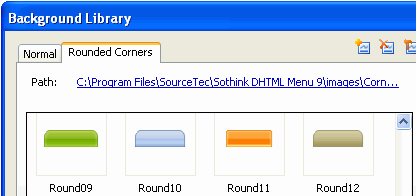
Support setting background with rounded corner. Users can choose background images in Background Library or custom the background images as they like
Add new templates and modify the present style in the built-in templates
Sort the images by the use frequency in all image libraries and the Style panel of Menu Item
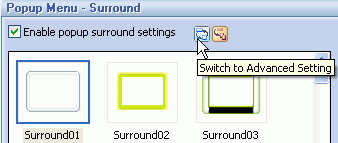
Simplify the surround function by dividing "Popup Menu > Surround" into normal panel and advanced panel. Users can adjust the color, tint & brightness to edit the surround image or choose corners and edges separately.
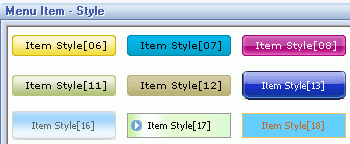
Modifying the present styles of menu item
Add an option in dialog "Options > General" to sort the styles in Menu Item > Style panel and images in Image Library and Background Library by the frequency.
The files will be displayed as thumbnails when clicking the folder buttons in several panels of the program to browse and choose files in the computer.
Move the option setting in "Global > Menu Type" to "Global > General."
Auto -scroll" is checked automatically in option setting of "Global > General" when choosing "Float" as menu type.
Simplify the operating procedures in image library and sort the images by the frequency .
Optimize the preview window in "Popup Menu > Effect".
Modify the tip text of several buttons on the main toolbar.
Delete 2 buttons on the toolbar of menu tree panel and adjust the order of other buttons.
Fixed bugs:
When inputting invalid value as width in "Global > General" with the option "Stretch whole menu width" checked, the program has failed to react.
When previewing a web page that includes a 2-level menu in Netscape browser, the character "#" has been added to the URL address of this web page automatically after clicking different menu items for several times.
If user set to hide "Flash movie or other ActiveX Object" automatically in "Global > Advanced", Flash movie or other ActiveX Object has failed to be shown correctly in some browsers on MAC platforms.
Sothink SWF Decompiler is a professional tool to convert SWF to FLA and extract elements from SWF into variable formats; and exporting multi-file simultaneously are supported. Compatible with all Flash versions including Flash 6, Flash 7, Flash 8 and Flash CS3 (9.0). Supports both ActionScript 2.0 and 3.0. After the converting, you can get the completed FLA file including linkages, components, *.as, etc.
With SWF Decompiler, you can extract any element of the Flash movie into SWF, FLA or their common format, such as shapes, morph shapes, images, sounds, videos, frames, fonts, texts, buttons, sprites and ActionScripts. E.g. you can extract ActionScript as AS or BIN file, get sounds as MP3 or WAV, images as JPEG, BMP or PNG, videos as FLV, shapes as GLS, etc. Both standard SWF and EXE (Flash project) files are supported.
Sothink SWF Decompiler provides a user-friendly interface (like Office 2007). A built-in player enables you to preview the movie and every element before exporting. A thumbnail view and navigation bar in the preview window enable you to pick element easily. And the interface layout can be customized to meet your needs.
To make SWF Decompiler more appealing, SWF Catcher is offered. It is a free tool that can capture Flash movies online from Internet Explorer or Firefox.
Provides a user-friendly interface (like Office 2007) to quickly browse and play SWF on your hard drive or network.
Navigates resources in preview window.
Provides the playback control bar to play, stop, forward, backward, zoom in, zoom out and position Flash movie freely.
Optimizes the display of ActionScript in Resources Panel. When decompiling AS3.0, support showing AS Class structure like folder-tree according to its path in package.
Supports Flash 9 and ActionScript 3.0 completely.
Converts SWF to FLA stably.
Support exporting the resources to SWF or FLA format.
Process multi-file, no matter where the files locate.
Full supports Flash 6, Flash 7, Flash 8 and Flash CS3 (9.0).
Compatible with both ActionScript 2 and ActionScript 3.
Supports exporting FLA file with ActionScript 3.
Supports exporting ActionScript in AS format.
Supports exporting AS files in HTML format.
Supports Flash components.
Decompiles the ActionScript code and generates neat and readable code.
Shows the script code neatly within the program and exports the ActionScript while converting SWF to FLA.
Can extract the shapes, sounds, images, sprites, fonts, texts and ActionScript from a Flash movie.
Can extract the video file from a Flash movie and export it in FLV format.
Supports scanning the cache of IE and listing all Flash files you have viewed.
Enable to browse and preview any resource before exporting.
Shows detail properties of elements in Flash movies.
A beta product is software that is ready for user evaluation, but still undergoing testing. You may experience bugs or compatibility issues with web sites while browsing.
Compatibility View
Internet Explorer 8's built-in Compatibility View button enables you to display websites that were designed for older browsers. Simply press the Compatibility View button if you see display problems on a website like misaligned text, images, or text boxes. It's located next to the Refresh button on the Address Bar.
Downloads
Get Internet Explorer 8 Beta 2, the latest version of Microsoft's free web browser.
A beta product is software that is ready for user evaluation, but still undergoing testing. You may experience bugs or compatibility issues with web sites while browsing.
Beta software is at a stage in the development process where it is ready to be evaluated by users while still undergoing testing. Internet Explorer 8 Beta 2 is close to its final release, but you may encounter a few bugs or compatibility issues while browsing websites.
If you're okay with using a beta product, install Internet Explorer 8 Beta 2 and take it for a test drive. We think you'll agree that it's faster, safer, and easier to use than ever. If you don't like it you can easily uninstall it whenever you want.
We understand if you feel uncomfortable installing beta software. Check this website in the coming months to see when the "final" version of Internet Explorer 8 is available.
Looking for information on an older version of Microsoft Internet Explorer?
Skype announced Skype 4.0 beta yesterday. I was supposed to be on the briefing conference call, but was tied up with finishing up the Movable Type 4.2 migration. But I wanted to bring information about this major 'point' release to your attention. Better late than never I guess.
First, below are three videos provided bySkype. It includes an intro by Skype President Josh Silverman who espouses "integrated communications". Integrated communications, unified communications, what's the difference?
Anyway, the first video talks about making Skype easier to use, a redesigned user interface, improved video features, other new changes & features and perhaps most importantly, the fact that it is "beta". In fact, they are only releasing the Skype client "releasing it to a limited set of users as a way to begin the conversation with our community." So be forewarned a) that it's a limited beta and b) that it is missing some features in Skype 3.8 such as full history and contact groups. Skype Journal has a similar warning.
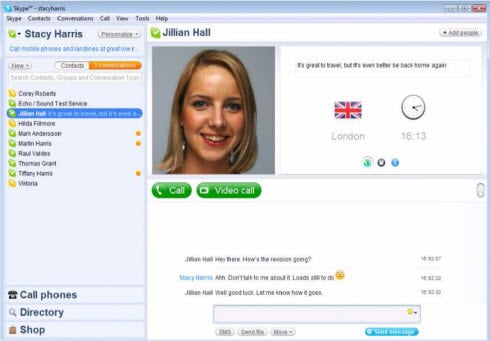
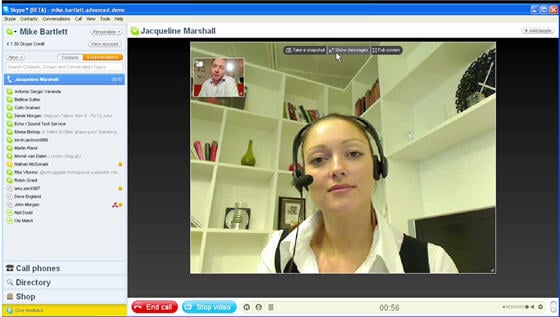
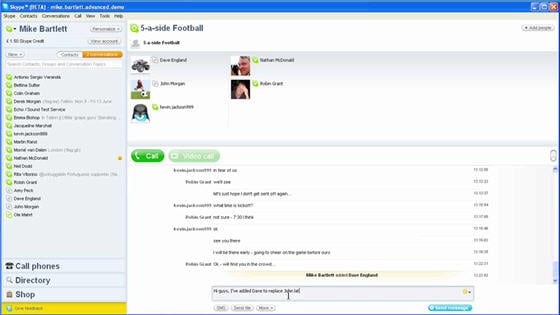
Conversation management is better in Skype 4.0. It displays a list of all the conversations you've got going on and lets you easily move in and out of conversations. A conversations button above the contact lists all the conversations users have active and users can simply click between them to pick up a conversation where they left off. According to Mike Bartlett, Director of Windows Product Management at Skype, "You can also pop your conversations out into separate windows if you prefer having different windows for different conversations."
Check out the videos. Oh and if you want to live dangerously, you can download Skype 4.0 beta here. (Windows only - Mac & Linux users need not apply)
Thirteen versions and twenty-one years after the very first Illustrator, Adobe is rolling out beta versions of Illustrator CS4. After so many iterations, you might wonder what Adobe could possibly do to make Illustrator CS4 worth the cost of the upgrade. In this preview, I am going to highlight the most noticeable changes with big scoops of screenshots and video to give you a real taste of the new Illustrator. Note: this preview is done on the Windows version of Illustrator CS4 Beta.
Lets start with the obvious:
User Interface Changes
Section Summary:
New Splash Screen (of course)
No Microsoft Toolbar saves pixels
Document Tabs!
Document Frames
More accessible workspace presets
Some tools moved around on the tool panel
Adobe Illustrator CS4 starts flaunting its new look right from the start - the splash screen is still simplistic, but now features some shiny transparency effects on the “Ai”.
The next interface change may have you wondering if there is something wrong with your view settings. No, everything is working fine. Illustrator is overriding the Microsoft Windows Title Bar - the minimize, maximize and close buttons are integrated right into the main window (similar to Google Chrome). This not so subtle tweak actually saves quite a few pixels, which, it turns out, you’re going to need!
One of the best changes to the user interface in Illustrator CS4 is document tabs. If you have more than one Illustrator document open at a time, they automatically form tabs ala Firefox. If you want, these tabs can be separated from the main Illustrator window by grabbing the tab and dragging outward. You’re probably already an expert at managing tabs, and after a few minutes in Illustrator CS4 you’ll wonder how you put up with all that minimizing and restoring of documents. Tabbed documents save a lot of clicks.
If you look closely at the screenshot below, you’ll also notice that there is no ‘Filter’ menu - only an ‘Effects’ menu. I speculate that Adobe did away with the redundancy of the filter menu because of increases in effect performance and changes to the appearance panel.
CS4 has more document management tricks up its sleeve - frames. These frames are accessed via a little icon to the right of the menu bar called “Arrange Documents”. Click and you’ll find a drop down list of frame presets for two, three, four and more open documents. These presets are useful for comparing two documents side by side (especially on that new 30″ cinema display, right?). The “Arrange Documents” menu contains many presets for arranging open documents - stack side by side, on top of each other, in a grid, etc.
The paradox of new software is that it must balance conflicting interests: more power and improved usability. That is probably why the most recent versions of Illustrator keep re-thinking panel (they’re only palettes in Photoshop) management. Well, CS4 is no exception. The brains at Adobe have made workspace presets more accessible by putting a drop-down menu right above the panels. They’ve also done a lot of the leg work to convince us that custom workspaces can save time. These presets are easily accessible and fill the dock with customized panels for typography, web, painting, etc. The presets from Adobe also include application specific layouts such as “Like Photoshop”.
The Illustrator’s toolbox has been slightly shuffled in Illustrator CS4. The eraser tool is given a more prominent place in a group of often used tools - it now sits along with the pen, text, shape, and brush tools. This means that the scissors and knife tool have also moved (they’re only accessible in the flyout of the eraser). The slice tools use to sleep in the fly out menu from the crop tool. Now, they have their own spot on the toolbar.
Finally, while having little effect on your workflow, Adobe moved their logo and link from the tool box to the menu bar. These are the kind of little tweaks I really enjoy - they make CS4 feel more polished, refined and purposeful.
New Tools
Section Summary
Blob Brush
Artboard Tool
Updated Gradient Panel
Appearance Panel Overhaul
New Document Options
Blob Brush Tool The first new tool I noticed was the Blob Brush Tool. If you’ve ever worked in flash or frequently expand brushes, you’ll probably appreciate this new tool. Here’s how it works: it organically draws a shape instead of a path. As you draw with the brush, the path is expanded every time you raise your wacom pen (or mouse). Then, as you add more brush strokes, overlapping sections are automatically added together to form one shape. Here’s a video of the brush tool in action to see what I mean:
When the blob brush tool is double clicked, brush options are available. I was happy to see that Wacom tablets will be fully supported with blob brushes. Depending on how the final product turns out, Wacom artists may be able to ditch the Photoshop + Autotracing routine and stay in Illustrator the whole time by using blob brushes.
Artboard tool
While this could technically fall under “changed” features, it is cool enough to warrant its recognition as a whole new feature. The artboard tool is an evolution of the crop area tool from Illustrator CS3. However, instead of using cumbersome hotkeys to create multiple crop areas, CS4 re-thinks the whole concept of an artboard. In CS4, using the artboard tool will create a new artboard by default and give it a number automatically. Clicking on the white space of any artboard with the Selection Tool will activate it. These new artboards are way better than the nearly invisible crop areas of CS3, and make it much easier to manage projects-in-progress! Adobe makes it clear that these new artboards mean business - Artboards can have their own rulers! Just right click on the active artboard and tick “show artboard rulers”. Artboards are always editable - you can resize and move them around until you’re satisfied.
Most importantly, this tool is very well integrated into the Export window. Finally, you can export multiple artboards (crop areas) to separate files in one step!
Last, we’ve got artboards within artboards. if you think this is getting ridiculous - so do I. While I can hardly imagine the need for nested artboards (on top of the document-taming tab tools in CS4), Adobe must have found a need for this feature. To enable it, simply hold shift while dragging with the artboard tool inside of an existing artboard. Check out the video for a short demonstration of the new artboards in CS4.
Updated Gradient Panel
Adobe finally addressed one of my biggest complaints about Illustrator: the inability to form a gradient from color to transparency. Now, Gradients have opacity options - Finally! This option lets you select any of the colors on the gradient slider and choose its opacity. For even more control, you can now double click on the color slider and access the full range of color picking tools.
The gradient panel now has a handy button to quickly “reverse” the gradient - another one of those little refinements that will save you tiny bits of time and effort. The angle tool on the gradient now has a slider so you can now dial in the correct gradient angle a little faster. Finally, Radial gradients now have a ’roundness’ option. No more stretching gradients and applying clipping masks - now you can just define the roundness of the radial gradient.
If these updates weren’t enough, Adobe has iced the gradient cake with the Gradient Annotator. The Gradient Annotator allows you to adjust gradients intuitively - right from the shape itself. Since a picture is worth a thousand words, just take a look at the screenshot and video below to see what I mean. This tool won’t enable dazzling new effects, but it will make it easier to get gradients just right the first time.
Appearance Panel Overhaul Admittedly, I rarely (if ever) use the appearance panel, so I may miss a few things here. Anyway, here it goes: Changes to an objects’ appearance can now be hidden / shown via Adobe’s signature ‘eye’ to toggle visibility. Also, the appearance panel now gives you access to raster effects previously only accessible in the “effects” menu.
EDITED: Teri from Adobe sent me this nice email about why I should be using the Appearance panel. Definitely got me thinking…
Whats new with…Ctrl+N?
Adobe gives a nod to print designers in the updated new document dialog. In Illustrator CS4 you’ll be able to define the number of artboards and how they’ll be arranged. These controls will make it much easier to set up documents for multipage print projects. Custom bleed settings are also possible with Illustrator CS4. Check out the screenshot below - new features have been highlighted.
What do you think?
My gut reaction is that Illustrator CS4 will be an enjoyable upgrade. I like that Adobe has kept the glint and glamor to a minimum (few fancy new tools with little practicality) and instead made important workflow improvements. When I have four color variations of a logo to export, the new multiple artboard features are going to be nice.
So what is your reaction to the new features? Has Adobe used this year wisely? Let us know what you think in the comments and check out the CS4 poll at the bottom of the page.